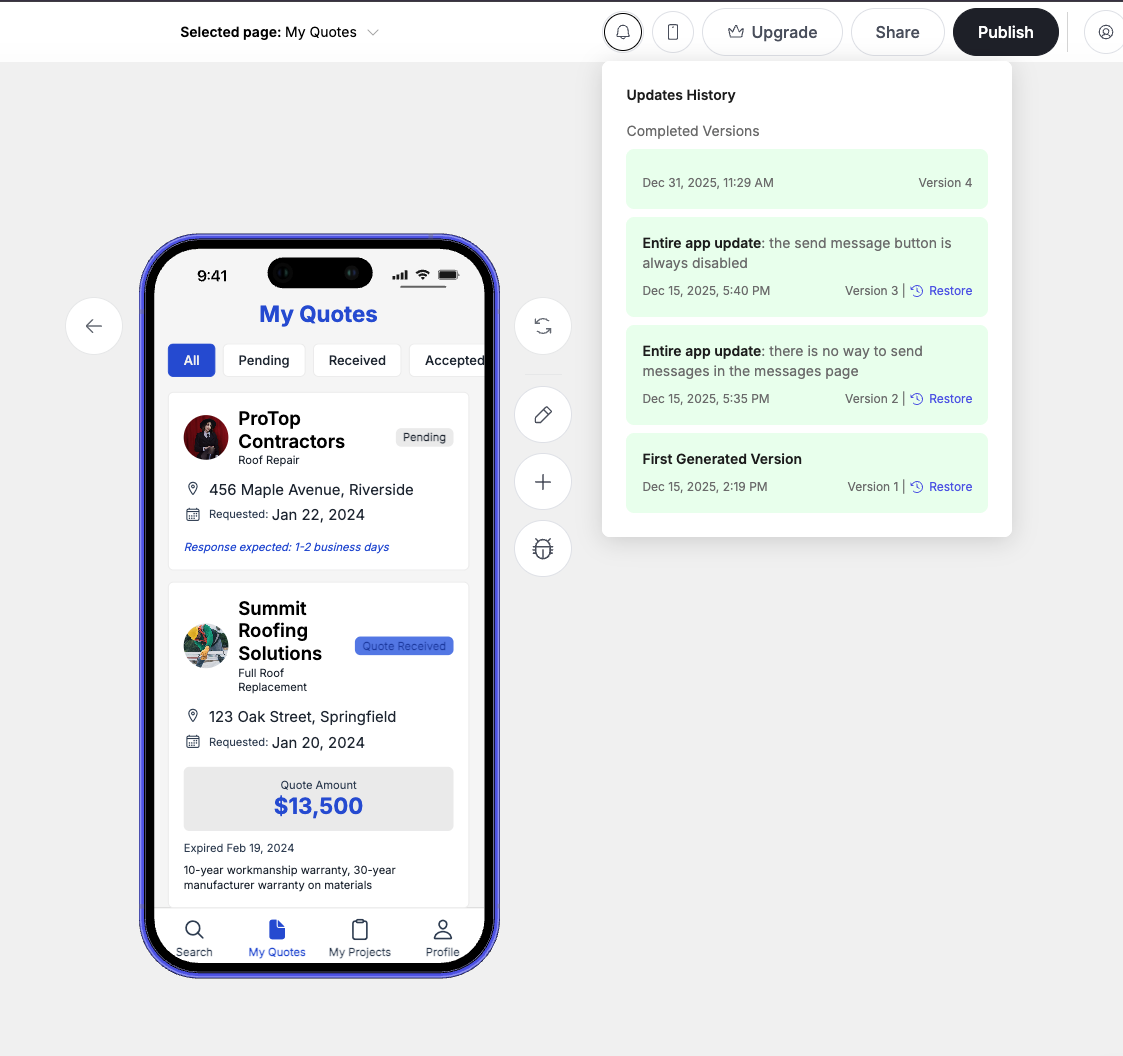
This guide shows you how to edit and improve your app after it’s been generated. You’ll learn how to make basic changes, fix bugs, and extend your app using coding agents.
This video walks through how to make everyday changes to your app. You can use Plan Mode, Build Mode, Select Elements, and Screenshot to Chat for different types of edits—depending on whether you want to plan first, apply changes quickly, target a specific element, or show what you want visually.
Unlike other AI-enabled vibecoding tools, Woz does not use tokens. That means you can make as many changes to your app as you would like without the uncertainty of what it will cost.
Plan Mode works like a smart co-pilot that reviews your idea before any building happens. Instead of jumping directly into changes, Woz first analyzes your request and creates a clear step-by-step plan for you to review.
Select Elements is one of the most powerful features in Woz and also one of the easiest to use. Instead of describing where something is in your app, you can simply click on it.Woz attaches that exact element to your chat so you can instruct it what to change.
Sometimes it is easier to show what you want to change instead of describing it.Screenshot to Chat allows you to capture the current screen from the preview panel and attach it directly to your conversation with Woz.This gives Woz visual context for the change you want to make.
Fix bugs in your app without dealing with technical errors.Bugs happen in every app. Woz makes it easy to find and fix them. When an issue is detected, a bug icon appears automatically. You don’t need to understand the error, Woz can handle it for you.
These errors started after I updated the screen layout. Fix all selected bugs, make sure the app runs smoothly, and ensure the UI and functionality are not broken.
Woz hosts your app’s code in a secure server alongside the proprietary, AI-enabled editing tools that makes our app generation and editing magical. To access your app’s code from outside Woz, we need to establish a secure connection from your computer to a small, contained portion of our server.Woz supports connecting to:
Cursor
Claude Code
VS Code
These tools let you:
Inspect your app code directly
Make precise changes
Combine Woz’s generation with hands-on editing
To get started, set up a personal account with Cursor, Claude Code, or VS Code. For vibecoders, we recommend Cursor for its robust AI-supported editing capabilities.Learn more about getting set-up;