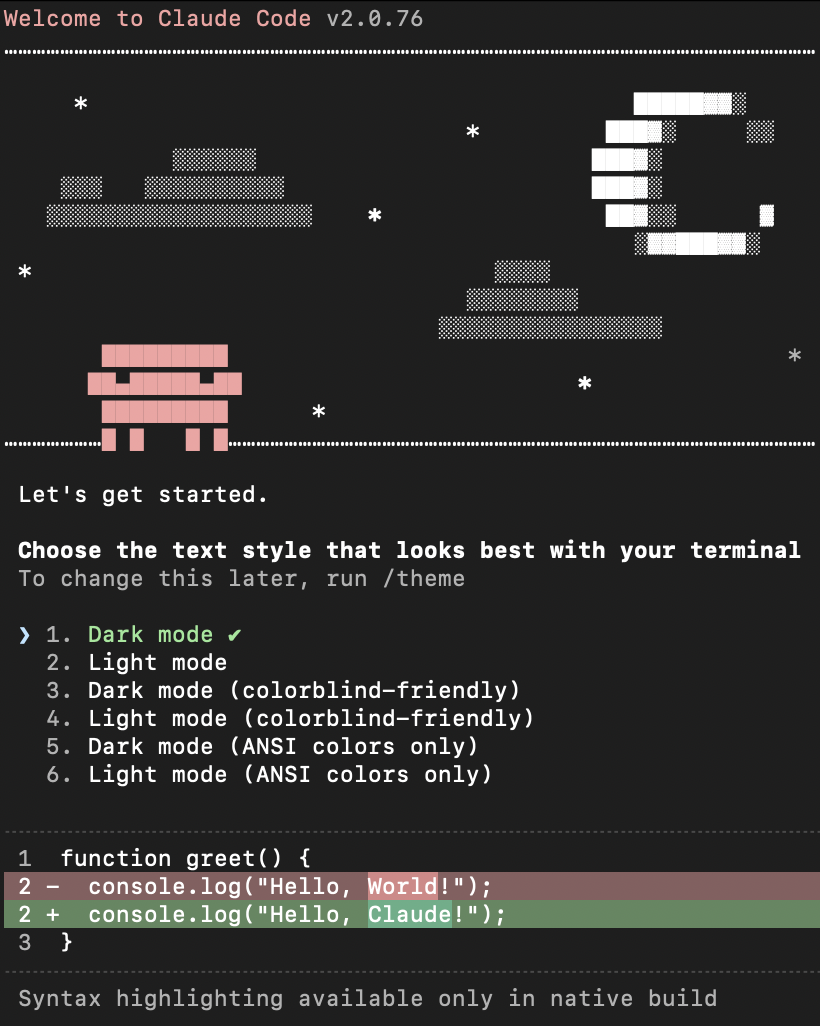
Getting set-up
- Download Claude Code and create an account.
This is the tool you will use to view and edit your app code. - Sign up with Github
This allows you to publish your changes. - Open Terminal, which you will use to connect to our server, and save your changes.
Opening your code files in Claude Code
-
Open the “Dev Tools” menu and select “Open with Claude Code”
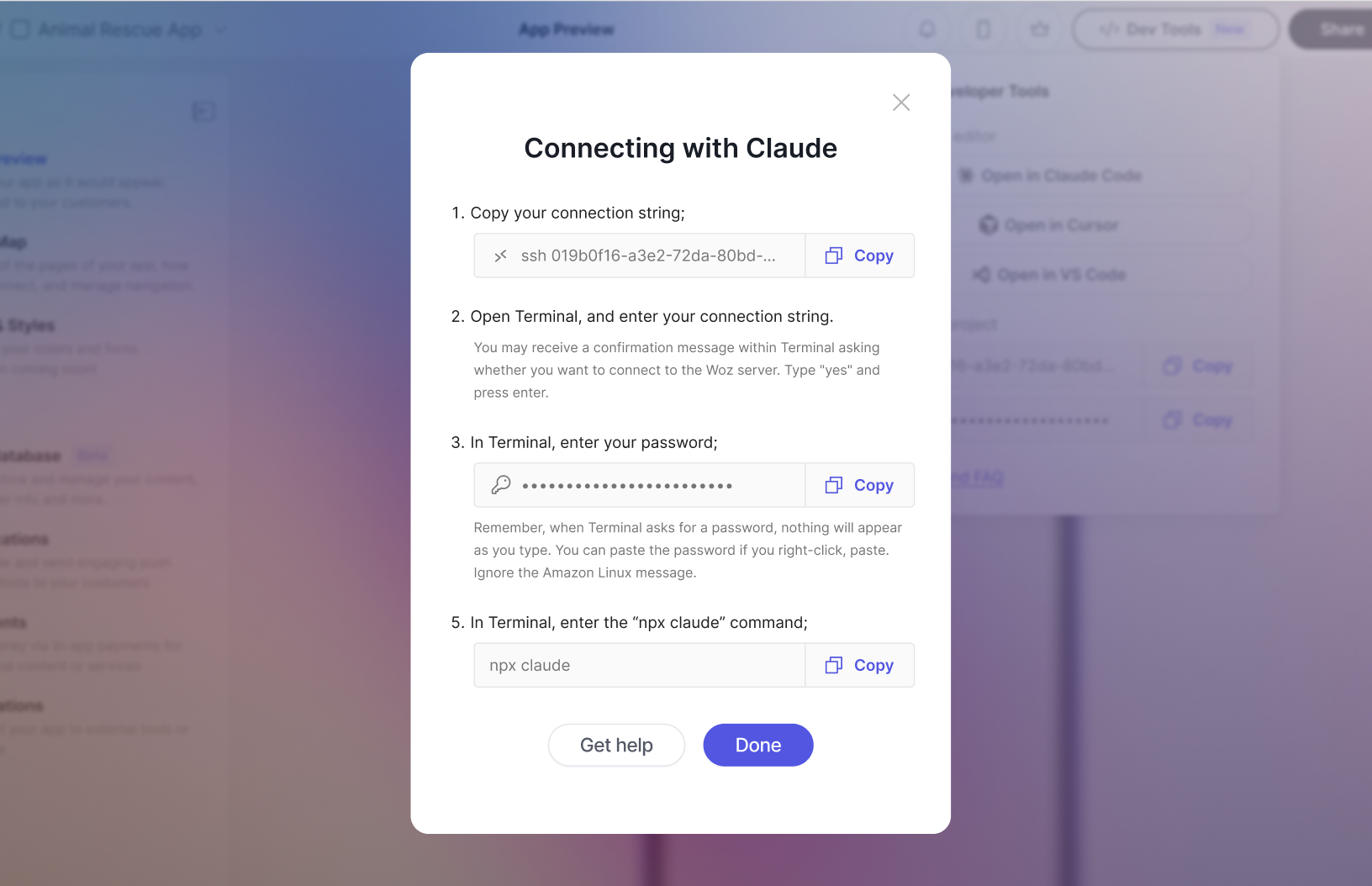
A modal will display with specific instructions for connection with Claude via your Terminal app.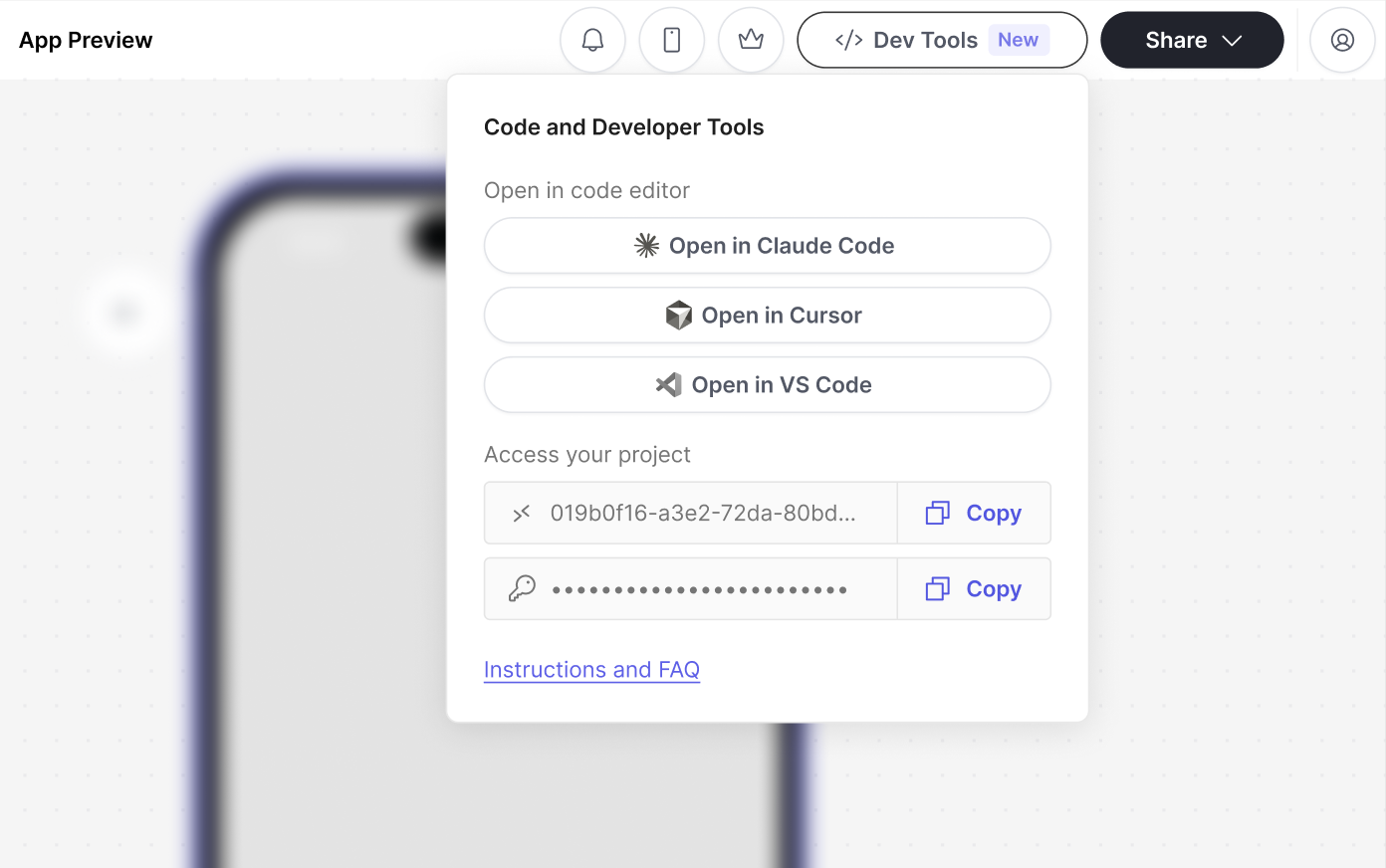
-
In Terminal, enter your connection string
This starts with “ssh”
You may receive a confirmation message within Terminal asking whether you want to connect to the Woz server. Type “yes” and press enter.

-
In Terminal, enter your password
This is available in the modal with instructions for connecting with Claude. Remember, when Terminal asks for a password, nothing will appear as you type. You can paste the password if you right-click, paste. Ignore the Amazon Linux message;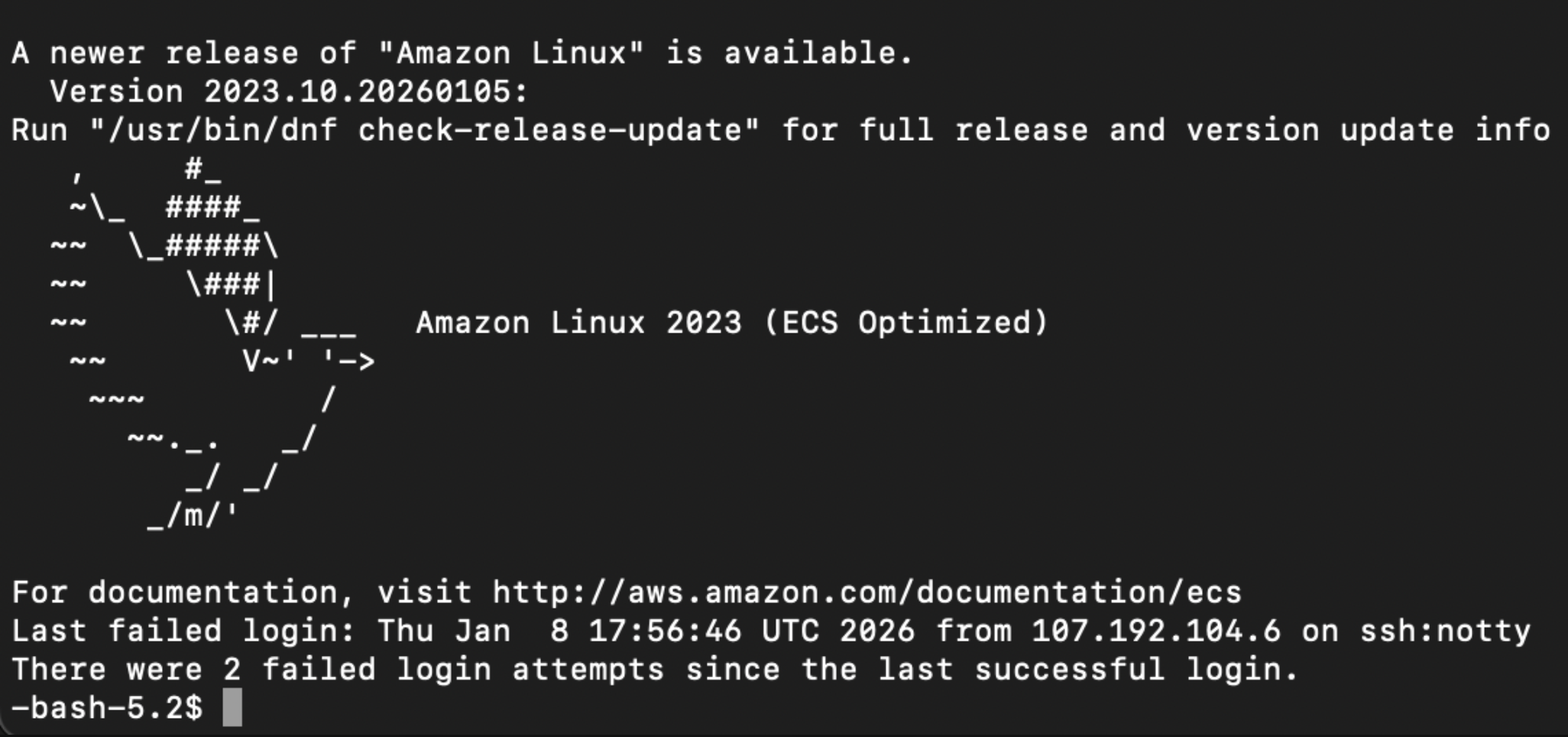
-
Confirm that you are connected
You should see a welcome message from Claude in your Terminal window.