

Getting set-up
- Download Cursor and create an account.
This is the tool you will use to view and edit your app code. - Install the “Remote - SSH” extension.
This allows you to securely access your app’s code while we continue to host it on the Woz platform.
Opening your code files in Cursor
-
Open the “Dev Tools” menu and click “Open with Cursor”
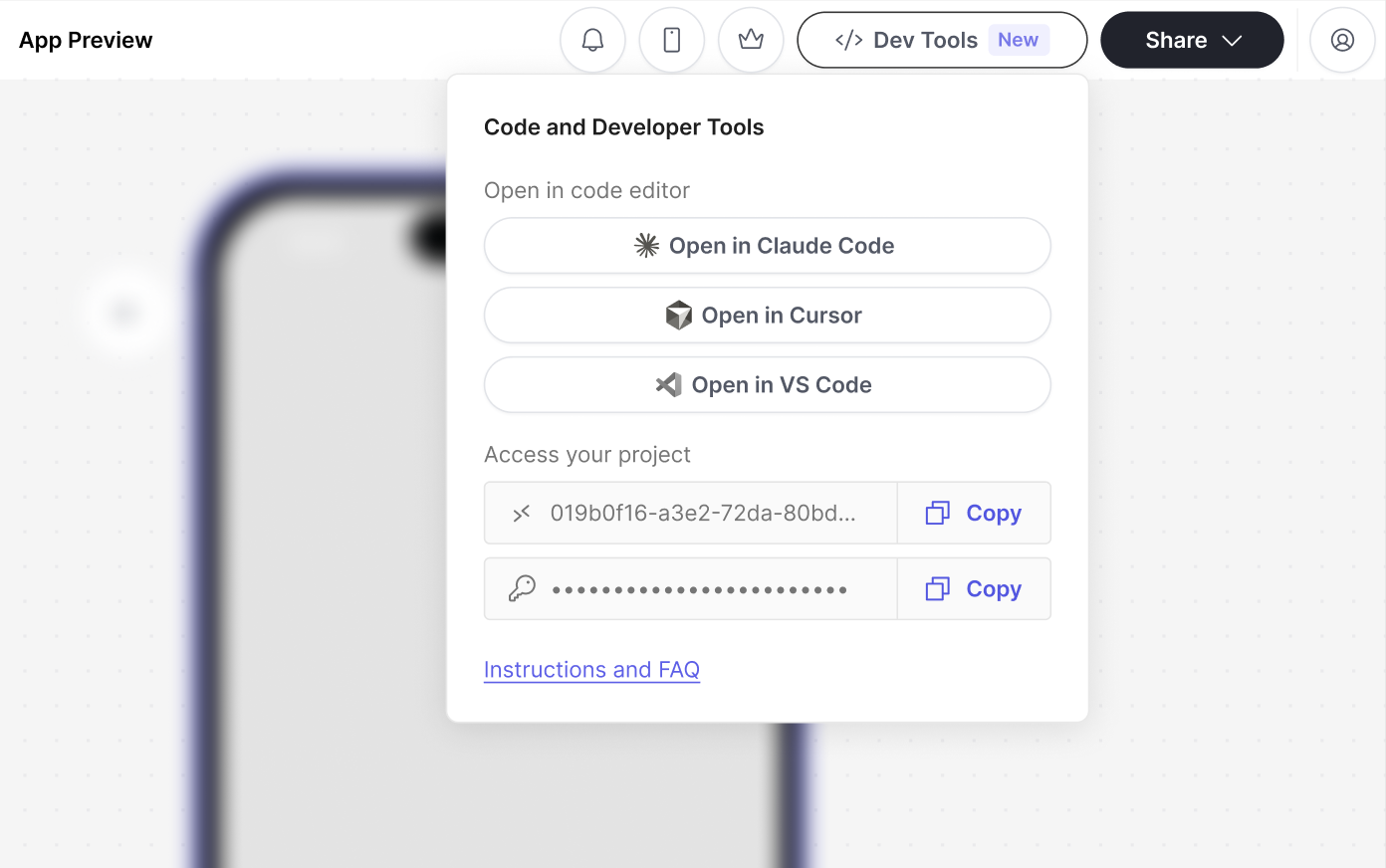
-
Accept the confirmations
• You may receive a pop-up confirming that you want to open the Cursor application. Select “Open Cursor” to continue.
• Click “Yes” on the pop-up noting that an external application (Woz) wants to open a folder.
• Click “Yes” on the confirmation asking “Do yout trust this host?” -
Return to Woz, and copy the password out of the Dev Tools menu, and paste it into Cursor.
 You may have to enter the password up to three times to access your code folder.Ignore and clear any notifications you may receive suggesting that you install or download Deno or Git. These are not needed to make changes to your app code.
 -
Confirm that you are connected
In the lower left corner of Cursor, you should see “SSH:” followed by a string of unreadable text. This confirms that you are securely connected to the Woz server.
If encountering SSH connecton problems, please close your Cursor window and try again.
Making and saving changes to your app
-
Edit your app code in Cursor
We recommend updating Cursor’s default model selection to Opus 4.5 for best results. You can change the model in the lower, left corner of the chat box where you enter your prompts to code. -
**In the Agent chat, write “Publish my changes.” **
This will automatically save your changes after each update.Sometimes you may need to “Review” or “Keep” changes, or click “Run” before Cursor will publish your work. If Cursor frequently asks whether you would like to publish your change, clicking “Allowlist” just to the left of the “Run” button will increase the likelihood of automatic publishing!Changes not visible on your App Preview?
You can also paste “npm run sshbuilder:git-push-deploy” into a Cursor Terminal window to publish your work. - A preview of your changes will be visible on the App Preview page of Woz Builder, or on your phone by opening the shareable link. Please note that updates may be a few minutes delayed.
Reconnecting after your connection times out
After a long period of inactivity, your connection to our server may drop.Here’s how to get back to editing your app;
- Close the Cursor window
This does not require quitting the Cursor application. - Return to Woz Builder, and click the “Open in Cursor” button in the Dev Tools menu.
This should open a new window within Cursor, and prompt you to enter your password, confirm that you trust Woz, and re-establish a secure connection with the Woz server.
Managing intergrations from Cursor
Environment variables need to be added or changed from the Woz Builder, Environment Variables table. Updates to environment variables from Cursor, even after committed to git, may be lost the next time you open your workspace.Tips for using Cursor with Woz
- To increase Cursor’s accuracy, it’s helpful to reference the page name of your app. Page names can be found on in the top navigation bar of the App Preview, or on your Page Map.
- We recommend updating Cursor’s default model selection to Opus 4.5 for best results. You can change the model in the lower, left corner of the chat box where you enter your prompts to code.
- We do not recommend restoring old versions of you app from within Woz Builder while Cursor is deploying a change.
- When testing your app on your phone (via the share link), you may discover errors and error information that may be useful to Cursor. Try attaching a screenshot of the error info when prompting to fix an issue.
- If Cursor frequently asks whether you would like to publish your change, clicking “Allowlist” just to the left of the “Run” button will increase the liklihood of automatic publishing.