> ## Documentation Index
> Fetch the complete documentation index at: https://help.withwoz.com/llms.txt
> Use this file to discover all available pages before exploring further.
# Connect to Claude Code
> Learn how to connect your Woz app to Claude Code for advanced editing
### Getting set-up
1. [**Download Claude Code**](https://claude.com/download) and create an account.\
This is the tool you will use to view and edit your app code.
2. Sign up with [**Github**](https://github.com/)\
This allows you to publish your changes.
3. Open **Terminal**, which you will use to connect to our server, and save your changes.
### Opening your code files in Claude Code
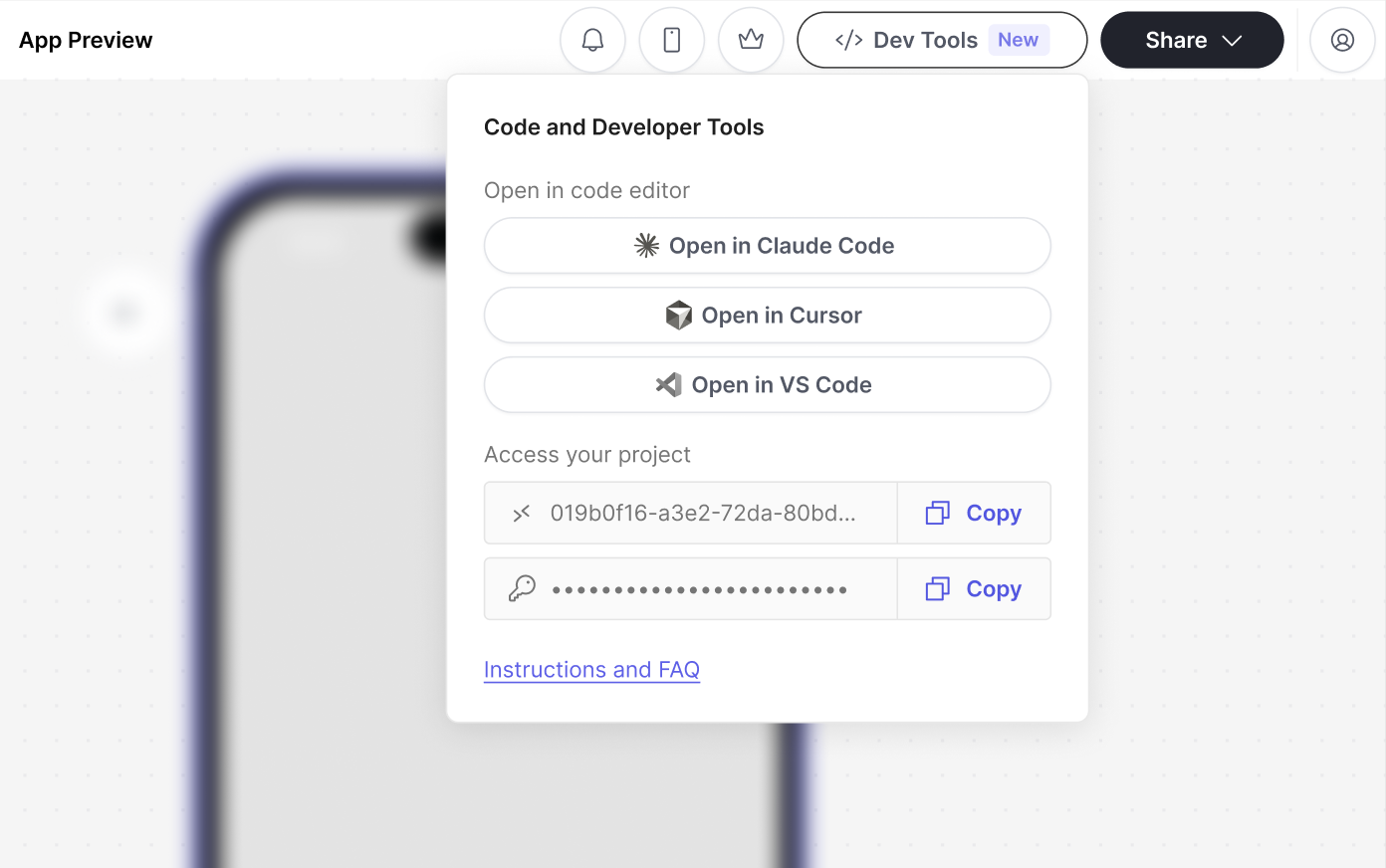
1. **Open the "Dev Tools" menu** and select **"Open with Claude Code"**\
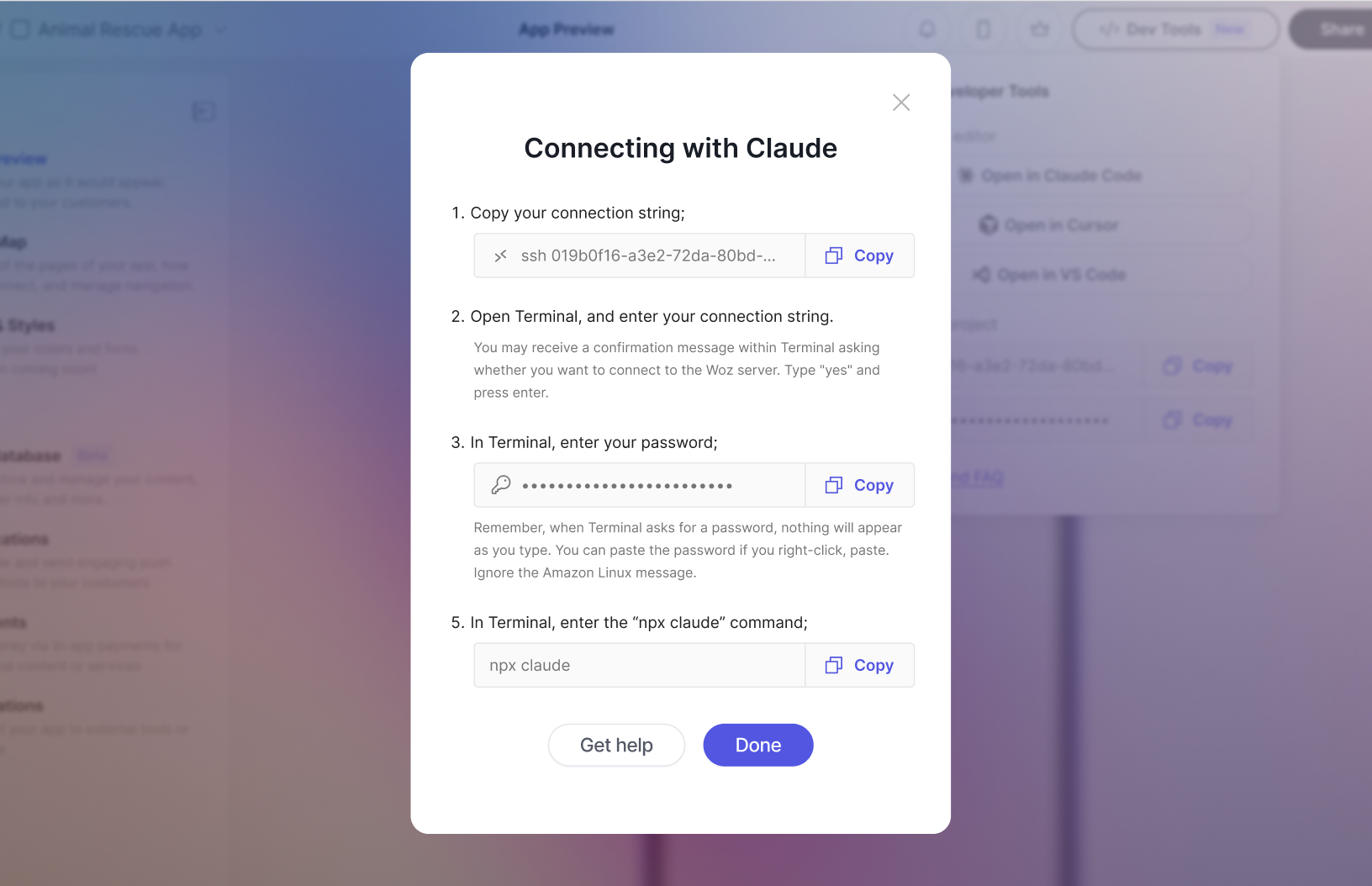
A modal will display with specific instructions for connection with Claude via your Terminal app.
 2. **In Terminal, enter your connection string**\
This starts with "ssh" \
You may receive a confirmation message within Terminal asking whether you want to connect to the Woz server. Type "yes" and press enter.
2. **In Terminal, enter your connection string**\
This starts with "ssh" \
You may receive a confirmation message within Terminal asking whether you want to connect to the Woz server. Type "yes" and press enter.

 3. **In Terminal, enter your password**\
This is available in the modal with instructions for connecting with Claude. Remember, when Terminal asks for a password, nothing will appear as you type. You can paste the password if you right-click, paste.
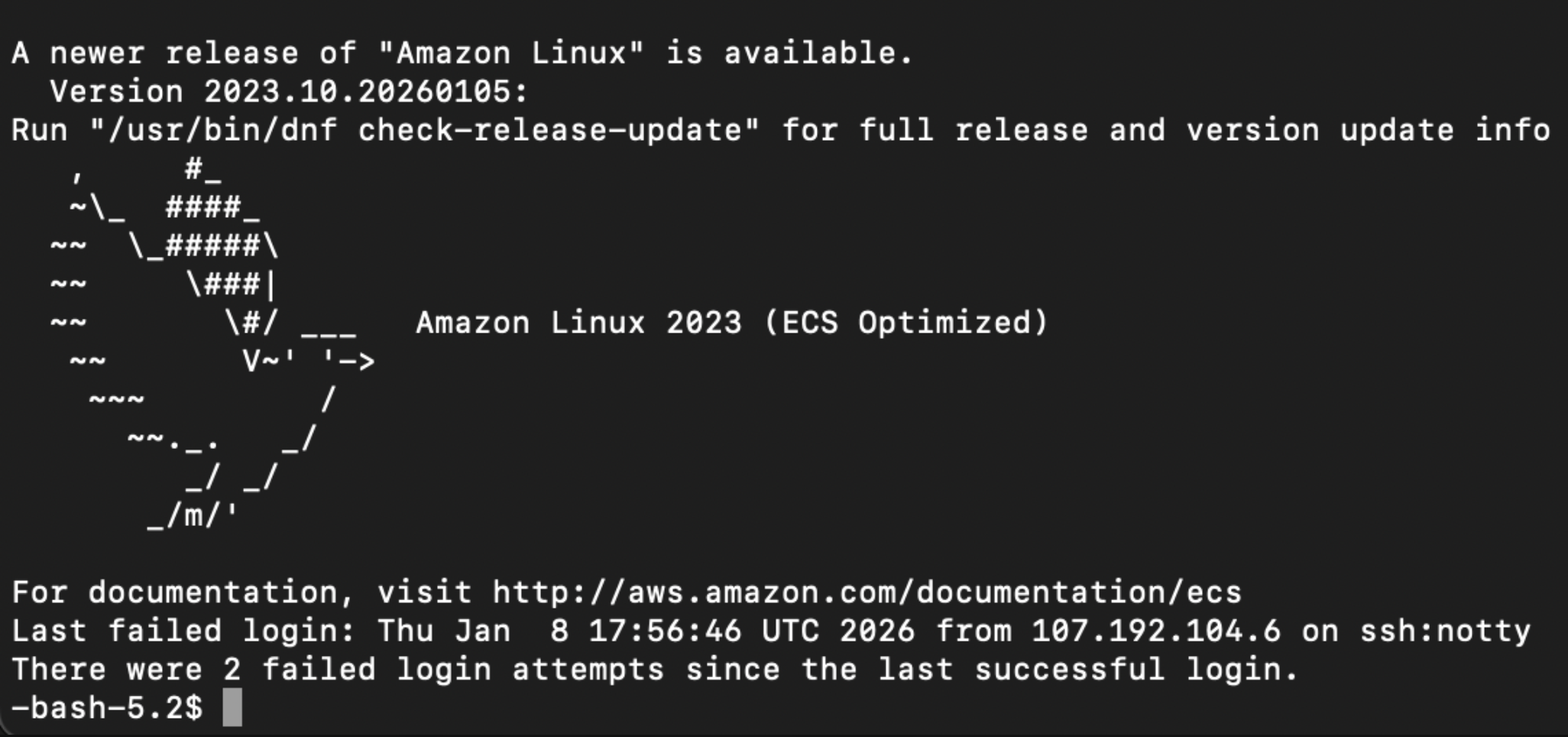
Ignore the Amazon Linux message;
3. **In Terminal, enter your password**\
This is available in the modal with instructions for connecting with Claude. Remember, when Terminal asks for a password, nothing will appear as you type. You can paste the password if you right-click, paste.
Ignore the Amazon Linux message;
 4. **Confirm that you are connected**\
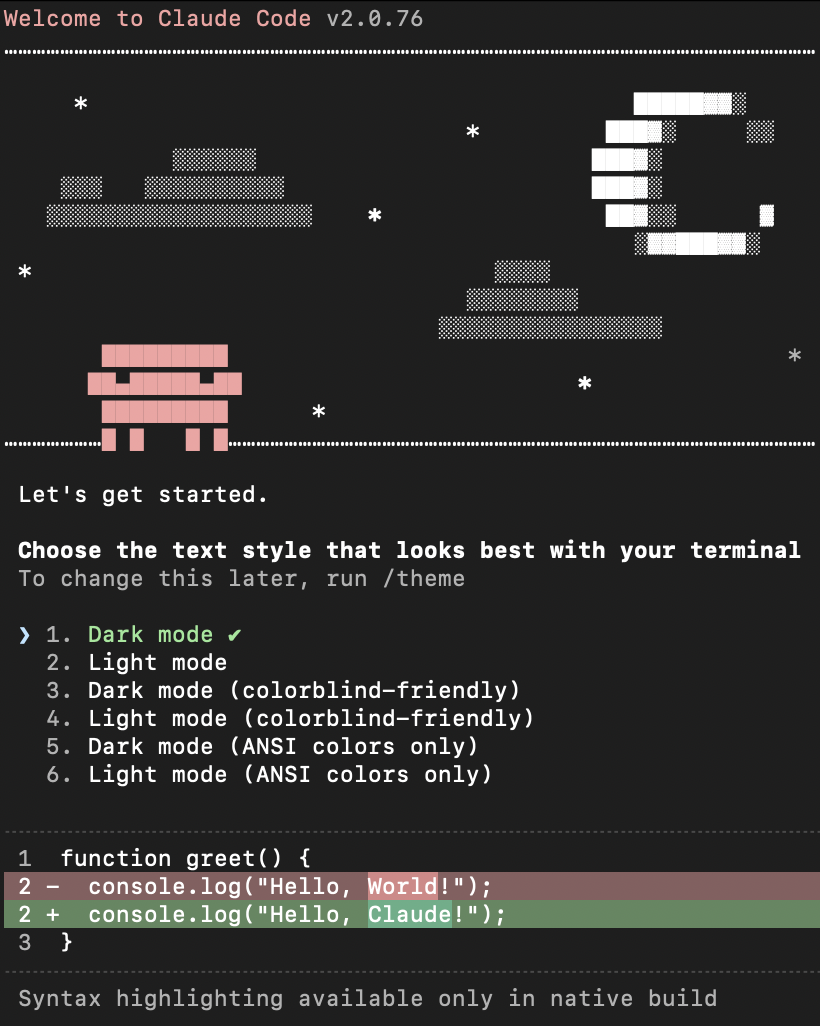
You should see a welcome message from Claude in your Terminal window.
4. **Confirm that you are connected**\
You should see a welcome message from Claude in your Terminal window.